
The default visibility for your website is public, meaning people can search for and view all pages and content on the site. You can limit access to your entire website or specific pages in a few different ways.
Password Protection
If your site is upgraded to Pro or better, you can hide individual pages or your whole site behind a password.
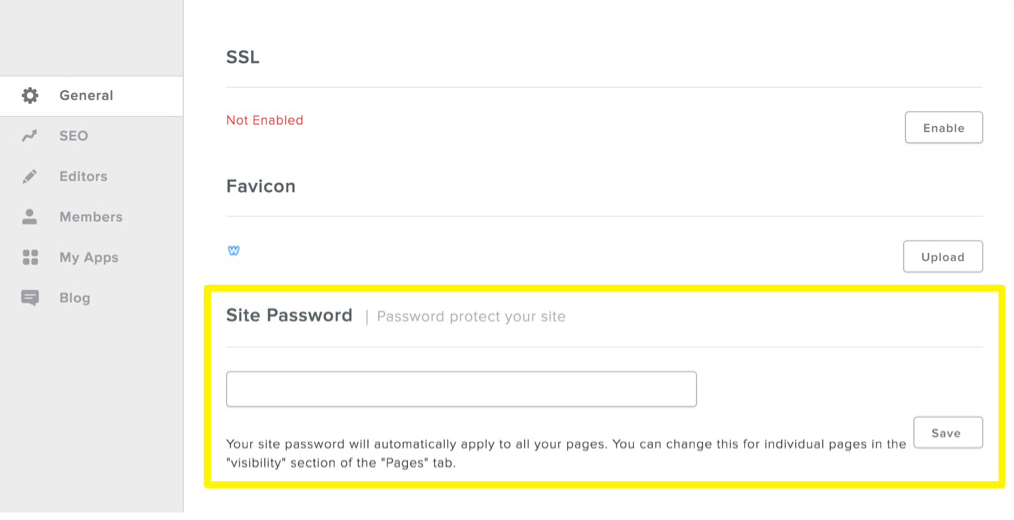
To password protect your entire website, log into the site editor and go to the Settings tab > General > Site Password. Enter the password you'd like to use to protect your pages, then click Save.
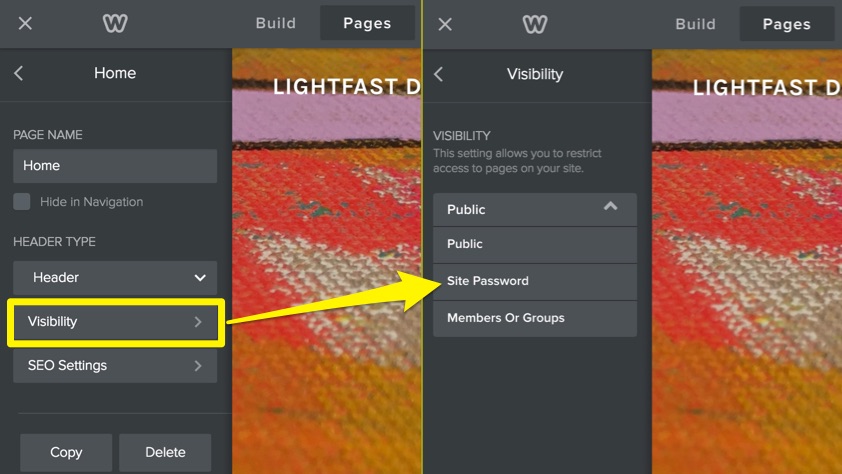
If you only want to password protect certain pages, you can go to the Pages tab in the site editor and selectively enable or disable the password protection for specific pages using the visibility menu.
If you want to turn off password protection for all pages at once, delete the password from the Settings, then save and re-publish your website.
Membership
If your site is upgraded to Pro or better, you can use the Membership features to restrict access to individual pages based on membership and groups. Learn more about using membership to limit access to pages.
